Your Complete Guide: Granting Secure Access to Your Google Ads Account
If you're partnering with a specialist, such as an agency or a freelancer, you need to share your ad account without ever handing over your private passwords. This is why Google Ads has a secure access system!
This simple, step-by-step guide will teach you exactly how to grant Google Ads access to ensure your partners have the right permissions to manage your campaigns, while keeping your financial information safe.
Step-by-Step: How to Give Access to Google Ads Account
To invite a new user, you must first have Admin permissions yourself. This is the highest level of control in the account.
Step 1: Secure Google Ads Login and Find Your Settings
The first step is a secure google ads login to your account.
Log into the Google Ads account you want to share. Use your personal Google Account credentials.
Once inside, look for the Tools and Settings icon (it looks like a wrench ⚙️ or gear) located in the top right corner of the screen.
Click it, and under the "Setup" column, choose Access and Security.
- Read More: Lead Generation Ads
Step 2: Navigate to Users and Start the Invitation
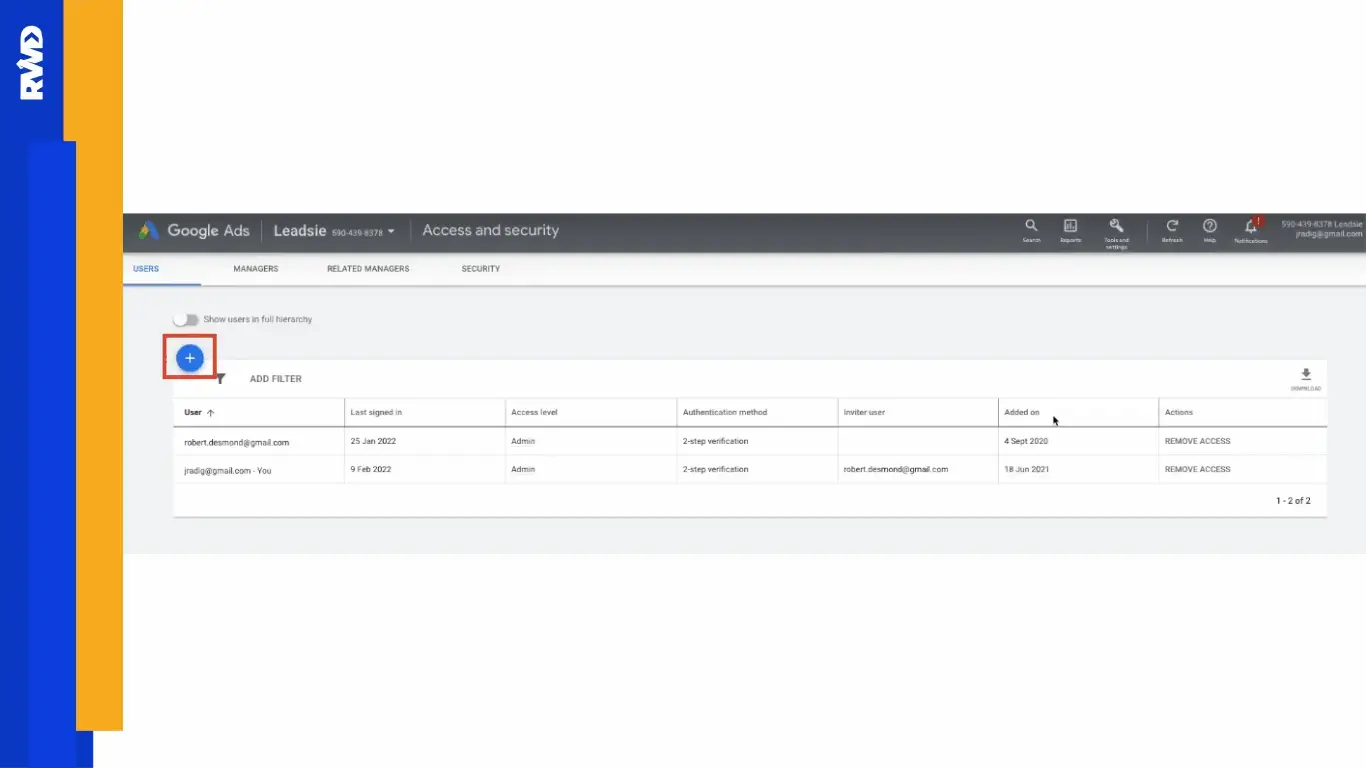
You’ll now be on the Access and security page where you manage all account collaborators.
Make sure you are on the Users tab (it should be the default view).
Look for the blue + button (often a circle with a plus sign) and click it to open the invitation box.
Step 3: Enter Details and Select Permissions
This is the most crucial step, as you define exactly what the person can and cannot do.
Add the email address of the person you want to invite.
Note: This email must be linked to a Google Account for the invitation to work.
Select the permissions you want to give them using the Google Ads Access Levels dropdown menu.

- Read More: Search Engine Optimization Blog
Understanding Google Ads Access Levels
When you grant google ads access, you choose from different google ads access levels. Choosing the right level protects your sensitive data while ensuring your partner can do their job effectively.
| Access Level | What They Can Do | Who Is It Best For? |
| Admin | Full control over everything: can manage campaigns, view/edit billing, and add/remove other users. | The business owner or a highly trusted senior marketing manager. |
| Standard | Can create, edit, and optimize all campaigns, ads, and keywords. They cannot add users or change billing information. | Agencies, freelancers, or your day-to-day campaign managers. |
| Read-Only | Can view all data and reports, but cannot make any changes. | Clients, executives, or financial analysts who only need to monitor performance. |
| Billing | Can view and edit payment methods and invoices, but generally cannot see or manage campaigns. | Your accounting or finance department. |
Step 4: Send the Invitation
Review the email address and chosen access level one last time.
Click the blue SEND INVITATION button.
The invitee will receive an email and must click the link to accept the access. Until they accept, their status in your account will show as "Pending."
By following these simple steps, you have successfully learned how to give access to Google Ads account securely!
FAQs for New Google Ads Users
Q1: What happens if I choose the wrong one of the Google Ads Access Levels? Can I fix it later?
A: Yes, absolutely! This is one of the most common worries when you grant google ads access for the first time. If you accidentally give "Standard" access instead of "Read-Only," you can easily fix it. As long as you have the "Admin" role, just go back to Tools and Settings > Access and security, find the user, and click on their current access level to change it to a different role. No need to send a new invitation!
Q2: I sent the invitation, but the person says they can't log in. Is there a common mistake I made when using how to give access to Google Ads account?
A: The most common mistake is that the email address you used in the invitation is not linked to a Google Account. The person you invite must use an email (like Gmail, or any email they have linked to Google services) to successfully complete the google ads login. If they use a different email, the invitation link won't work. The solution? Check that email address for typos, or ask them for the exact email they use for their Google services.
Q3: Why can't I see the "Access and security" option after my google ads login? Does that mean I don't have permission?
A: You are correct! If you cannot see the Tools and Settings (wrench icon) > Access and security option, it means your own user role is not an Admin. Only users with the highest level of Google Ads access levels (Admin) can invite or change other users. You will need to contact the person who originally set up the account (the primary Admin) and ask them to upgrade your access level first.
Q4: If I give someone Standard access, can they see or change my credit card details? I want them to manage ads, but not billing.
A: This is a crucial security question! If you give someone the Standard access level, they can manage, create, and edit all your campaigns, ads, and reports, which is great for a campaign manager. However, they cannot see, edit, or remove your payment methods or change your billing address. Only the "Admin" or the special "Billing" Google Ads access levels can view or change financial information, keeping your payments safe while they work on the ads.
Q5: If I link my account to an agency's Manager Account (MCC), do I lose my Admin rights? Who really owns the account?
A: When you grant google ads access to an agency's Manager Account, you do not lose ownership or your original Admin rights! Your individual account remains the "owner." Linking simply gives the agency manager certain permissions (usually equivalent to Admin or Standard access) to manage your campaigns. You can unlink or remove their access at any time through the Access and security tab, meaning you always maintain ultimate control over your Google Ads grant access.
Final Thoughts: Your Next Step in Paid Ads
Mastering how to grant Google Ads access is your first critical step toward running effective online campaigns, as it allows you to safely collaborate with experts. You've learned the importance of using appropriate Google Ads access levels to protect your financial data while giving campaign managers the freedom they need.
Remember: running successful Google Ads campaigns requires more than just knowing how to give access to Google Ads account—it demands constant monitoring, strategic testing, and advanced expertise.
If you are serious about maximizing your ad spend, partnering with a specialized agency is the best way to leverage those google ads grant access permissions. We highly recommend exploring the services of Raadwindeal (RWD). RWD is a Toronto-based marketing agency that specializes in delivering high-performing paid ads solutions. By granting RWD secure access to your account, you can transfer the heavy lifting of campaign optimization to experts, ensuring your budget is spent wisely and your campaigns are managed by professionals focused solely on your success.


Comments
Post a Comment